Hiển thị các bài đăng có nhãn Best DVD Ripper. Hiển thị tất cả bài đăng

Thứ Năm, 17 tháng 4, 2014

How to Add Movies to your Android Kids Tablets

As a parent, have you ever thought backup & convert your children's favorite movies onto Kids Tablets for unlimited playback? Recently, I have a lot of people ask me how to add movies to Android Kids Tablets so we can take them with us everywhere. Below the article I will leave written instructions and links to what I use to make this process work.


First of all, as children's parents, we perhaps need have some basic understanding for kids tablets, such as:

  • Samsung: Galaxy Tab 3 Kids Edition
  • Fuhu: DreamTab, Nabi Jr, Nabi 2, Nabi XD, Nabi
  • Barnes & Noble: Nook HD+, Nook HD, Nook Color
  • VTech: InnoTab 3S, InnoTab 3, InnoTab 2S, InnoTab 2, InnoTab
  • Kurio: Kurio Touch, Kurio 7S, Kurio 10S, Kurio 4S, Kurio7
  • Coby: Kyros MID1065, Kyros MID8065, Kyros MID7065, Kyros MID4331, Kyros MID9742
  • Kobo: ARC 10HD, ARC 7HD, ARC 7
  • Tesco Hudl, Tabeo e2, Meep! X2, ClickN Kids Tablet, Vivatar Camelio and many more...


Then I found a lot of questions about "how to move movies to Nabi 2 for my son?", "how to copy children's film to my Tesco Hudl?" by google searching, here is a scenario:

HOW TO COPY DVDs ONTO HUDL?

"Can anybody help please? I have just bought the Tesco Hudl for my young daughter and I wish to copy her DVD films onto the device. I believe it is Android, do I need to buy a DVD converter if so which one is best. Please help!!"

Answer: Yeah, your device is Android. To copy DVD onto Tesco Hudl, you do need a DVD converter. Many of such converters are available. Here are two free ones: Handbrake and Pavtube Free DVDAid.

Handbrake is open source software that provides an excellent quality of transcoded video. The program is also small in size albeit it is packed with great features that further improve synchronization and amazing video output quality.

  • Pros: excellent video quality output; small in size; support multi-platform
  • Cons: transcoding speed is slow; cannot deal with the protected DVD unless paired with another software
  • OS: Windows XP, WindowsVista, Windows7


Pavtube Free DVDAid offers you a fun, easy and fabulous way to rip DVDs, the giveaway version has all the features of regular DVD Ripper except it cannot output as MP4 nor does it have specific output profiles for electronic devices, unless you paired with another free video converter software and convert output video to mp4 format. The free DVDAid can rip DVDs to MOV, MKV, AVI, MPG, VOB, WMV, FLV, etc. with fast speed and help edit DVD, add SRT/ASS/SSA subtitles to output movies.

  • Pros: Easy to use; Editing features; Support dealing latest DVD disc
  • Cons: Can't convert video to mp4 format
  • OS: Windows XP/2003/Vista/Windows 7/Windows 8/Windows 8.1


Then, you have to pay some money to buy a DVD Ripper that can decrypt and convert DVD.

If you are looking for ease of use and fast ripping tool, check out Pavtube's DVDAid, which is easy to use to crack and rip DVD to any Android Kids Tablet playable format. I tried several different rippers and find the Pavtube exports qualitified video with reasonable size. The audio/video synchronization is very good, the size of the subtitles too. And the time it takes to convert in this software is almost half that in other. If you're using a Mac, please turn to Mac DVD to Nabi tablet Converter, which lets you rip DVD movies for Nabi 2 Tablet on Mac (including Lion and Mountain Lion 10.8). Just download the program and follow the guide below to rip videos from DVD discs to Nabi 2 for your children in just a few mouse clicks.

Good News! 2014 Easter Day Is Coming Soon! From April 18 to April 25, 2014 - Pavtube Studio announces a series of preferential policies on Facebook, such as: like our Facebook to get 40% off DVDAid, 30$ off Blu-ray Ripper, 20% off Video Converter Ultimate, Free ByteCopy, etc. Hope to see you soon!

Now I will show a detail guide on how to convert DVD movies to any Android Kids Tablets supported video formats with high quality so that our children can enjoy the favorite movies on any tablets on matter when and where-ever.

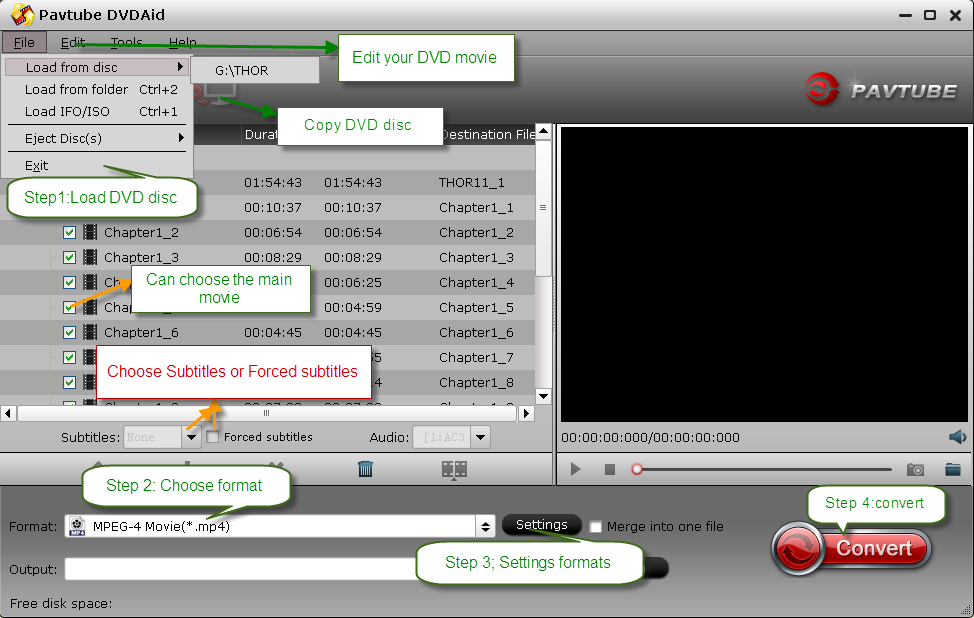
Step One: Download, install and run Pavtube Android DVD Ripper on your PC.

Step Two: Load DVD.

Insert DVD Disc into the DVD Drive of your computer, and then load your DVD movie from the target drive by clicking the "Load file" button. Then you will get an intuitive interface that shows you all the DVD titles and chapters you have loaded.


Tips: Edit output video effect with Pavtube DVDAid's powerful edit function, you can make an own style video for your children. For example, adjust the display brightness, contrast, saturation and volume etc; you can get accurate time length clips according to your preference by setting the start and end time, cut off unwanted playing areas of the video to fit your any Android Kids tablets.

Step Three: Choose suitable video format for any Android Kids Tablet.

Select output format in the "Format" bar. Here you find almost all the Android tablets on market, Nabi, Nook, Samsung, Google, Asus, Acer, Amazon, Toshiba, etc. For Android tablets, you can either find the tablet icon and select it as output format or simply choose "Common Video" > "H.264 MP4 Video".


Note: Click on "Settings" you could easily set bitrate, frame rate, codec, channels, sample rate, etc to adjust parameters that affect video quality and file size for the video you prefer.

Step Four: Start the movie conversion.

Finally, all the settings are satisfied, click "Convert" and let the software do the DVD to to MP4 conversion for Android kids tablets. After the ripping, you can click "Open" to locate the converted MP4 video files and just transfer them to your Kids tablet without limitations!!

Tips:

1. This Pavtube DVDAid could provide you with the 6x faster conversion speed with the AMD APP and NVIDIA® CUDA™ technology.

2. If you have some Blu-ray movies and various 1080p/720 MKV, AVI, VOB, M2TS, MVI, MPG, WMV, FLV, F4V, Tivo shows, etc. videos & movies, you can get the Video Converter Ultimate (or iMedia Converter Mac) which can help you rip Blu-ray/DVD, and convert various formats of 720p/1080p HD videos in MKV, AVI, TiVo, VOB, MPG, MTS, etc. to your Nabi Tablets and other Android. iOS, Windows RT/8 etc. os tablets/phones for smoothly playing.

3. If you have any problem, pls leave a message on our support forum or Fackbook, we will answer your questions as soon as possilble.

Thứ Sáu, 4 tháng 4, 2014

Enable kids and family members to watch DVDs on mobile devices

This article walks you through the whole process of converting DVD movies to mobile devices so that kids and family members are able to enjoy movies at home or anywhere they like. 

Kid's favorite animations like Olivia, Ice Age 4, Frozen, Big Top Scooby-Doo, Madagascar, The Jungle Book, Despicable Me 2, and more movies will release the DVD version soon. Would you like to move and watch these new movies on your iPhone 5S/5C, iPad Air, Samsung Galaxy Tab, Google Nexus, Surface tablets, Kindle Fire HDX or other portable device with your kids and family members? Without the assistance of any tool you cannot accomplish this because there is no mobile devices that are equipped with a disc driver natively.

Among all the software applications, free or paid, Pavtube DVDAid is my first choice for two reasons. One is its easy-to-use feature with user friendly interface; another is its reasonable price and lifetime support.

Anyway, I would tell you How to rip DVD movie to my iPad Air or other mobile devices and similar steps could be found from below tutorial for your mobile device as well.
Good News! Pavtube Release a New Site - multipelife.com with Product Migration and Name Change. DVD Ripper has now become DVDAid. Like us to get 40% off DVDAid on Windows/Mac platform: https://www.facebook.com/pavtubefans/app_209569249055691 
 
Step 1: Download a free copy of Pavtube DVD Ripper, install and launch it. Insert DVD disc, hit the "Load Disc" icon to browse to disc driver and load DVD movie into this app.

pavtube dvdaid  

Step 2: Choose the optimized format for output. In order to watch DVD movies on my iPad Air, I select "iPad" > "iPad Air HD Video(*.mp4)" as output format.
 
choose mp4 format 

If you have other mobile device, search for the particular profile from the "Format" drop-down list. When you cannot find your smartphone or tablet there, don't worry, use the similar format with your device or choose Android or Window profile, and then adjust profile presets to achieve the best video and audio quality for your device.


Step 3: click on the "Convert" button and start ripping DVD movie. When the conversion is done, I will find the converted MP4 movie in output folder and transfer to my iPad Air via iTunes 11. And the whole process of ripping DVD to iPad Air completes and I am ready to reach my DVD collection on iPad Air, iPhone 5S, and other mobile devices.

Read more:


Thứ Hai, 10 tháng 3, 2014

Great News for DVD fans: Pavtube DVDAid 4.5.0 is out! (Mar 09, 2014)

Pavtube Studio has updated DVDAid for Windows to 4.5.0 and DVDAid for Mac to 3.7.0.

Windows version
  • Version: 4.5.0
  • Supported OS: Windows XP/2003/Vista/Windows 7/Windows 8/Windows 8.1


What's new:
  • Support latest DVD
  • Windows install package with digital signature
  • Fixed some known bugs
Download here: http://pavtubecrm.pavtube.com/download/?s=6117c288e7b9fae0b60e4edebcf8b548&n=dvdaid

Mac version
  • Version: 3.7.0
  • Supported OS: Mac OS X 10.9 Mavericks, 10.8 Mountain Lion, 10.7 Lion, Snow Leopard 10.6, Leopard 10.5


What's new:
  • Support latest DVD
  • Update Mac pkg and dmg install packages simultaneously
  • Fixed some known bugs
Download here: http://pavtubecrm.pavtube.com/download/?s=1b1c6c832bd40a7d5b2a831508414822&n=dvdaid-mac

Pavtube DVDAid Review

If you travel a lot and you are looking for a way to take DVD movies you purchased with you to enjoy all the movies in your library, or you just want to backup your DVD collection to avoid them from daily playback damage or from your children, Pavtube DVDAid is the best choice.

This program is regarded as the best DVD ripping software on the market that provides movie lovers, children and people in any group with the easiest and fastest way to rip and convert DVD movies to MP4/AVI/MKV/WMV and many other video and audio formats with high quality. It lets you enjoy DVD movies on any portable device like iPhone 5, Galaxy S4, Lumia 920, PS4, Xperia Z, Surface, etc.

Moreover, Pavtube DVDAid makes 1:1 copy of original DVD Disc without quality loss with all audio streams, subtitle tracks, extras, etc. For the short time it takes to convert the movie with the help of CUDA/AMD GPU acceleration, and you will get hours of enjoyments. It's simple to use and well worth the investment.

Read more Pavtube Products Updated: http://club.myce.com/f201/pavtube-products-updated-335566/

Chủ Nhật, 12 tháng 1, 2014

Encode DVD to MP4 retaining chapter marker for iPad/iPhone/iPod

Watching DVD movies on iPhone, iPad and iPod touch could be such an enjoyment; the workflow is quite common as we now have so many rippers on the marketplace. But since we are talking about DVDs, it's much important to keep the original chapter marker when playback; y'all agree? 

As myself, I own a large collection of DVDs and like to watch them on the subway to work with iPhone, stream DVD movies to my home media server so kids could watch them on iPad, etc. As languages we use German, English and Spanish, so I have to find out a workflow to rip DVD collections to MP4 with chapter marker and it's better to include at least three audio tracks in one conversion.

With such a tough task, I had spent a lot of time searching online, tried several SWs - some ok but always something that does not quite to do what I need. Luckily, I finally got this Pavtube ByteCopy (lol).

Pavtube ByteCopy is a pro version Blu-ray/DVD ripping program, it’s not only able to remove disc encryption and transfer to iPhone, iPad and iPad touch readable format, but also keeps the original DVD/Blu-ray chapter marker and multiple audio tracks, so that you can free switch the language during playback.

You can download a trial version (no time limit) firstly, you can get 30% OFF on Pavtube New Site Special offer.

Tips: 
1. Although this ByteCopy should be able to rip Blu-rays, I have no experience with it as I don’t have an external Blu-ray drive. But one of my friends had a test and said it’s quite worthy a try. (ByteCopy Review)

2. Mac version is also available: Pavtube ByteCopy for Mac

How to rip DVD to MP4 with chapter marker for iPhone, iPad and iPod touch?

Get this ByteCopy installed and let’s start the workflow easily.

Step 1. Import DVD disc, DVD folder, IFO/ISO image files.

Insert DVD disc to your ROM, click “Load files” to import DVD disc directly from ROM. If you have IFO/ISO and DVD folder, choose the corresponding option to load DVD movies from your computer.


The main title in your DVD will be checked by default; so let’s move on and choose format.

Step 2. Choose format.

Click the “Format” drop-down list and choose “Multi-track Video>Multi-track MP4(*.mp4)” as below:


Step 3. Adjust video&audio settings (optional)

Click the “Settings” button to check all video&audio settings. By default it will check all the audio tracks (languages), so if you only need some of the languages, just check the unwanted ones.

Btw, video size, bitrate and frame rate can all be changed if you are not satisfied with default settings.

Don’t forget to click OK to confirm all the changes.

Step 4. Start conversion.

Click the big red “Convert” to start converting DVDs to MP4 with multiple languages. The original DVD chapter marker will be kept automatically.

After conversion, hit the “Open” or “Open output folder” icon to quick locate converted MP4 videos, transfer it to your iPhone/iPad/iPod via iTunes. 

OK! We now can watch DVD movies on iOS devices with chapter markers and languages. 

FYI: QuickTime cannot work with all the videos with chapter markers; in case of the problem, you are suggested to download a VLC Player for IOS here.

Money saving bundles:

Thứ Sáu, 27 tháng 12, 2013

Top 5 Best DVD Ripping Review in 2014 | Which One Will You Choose?

Are you looking for an easy-to-use, quickly, friendly and top DVD Ripper program? How to rip the Classic & Latest DVD disc to Android, Apple iOS, Windows 8.1, HD Media Players, smart TVs, etc., and played in the right resolution. How to backup DVD on Windows 8.1/Mac Mavericks?

If you want to get a Best DVD Ripper in 2015, this guide will be helpful. We give you top 5 Best DVD Ripper Program Reviews for you here. You can according the reviews to choose a proper DVD Ripper for you.

I will take 6 points into review.
  1. Cost/Performance: Everybody wants to gain more with less money. 
  2. Video Quality: Someone often uses the device to watch movie/video/tv shows, so the output video quality should be considered seriously. Top DVD Ripper output without any loss in the video and image quality of the exports. To enjoying the high definition video is of great pleasure. Or else, not only your eyes may get hurt; the annoying jumpy and mosaics will also bother you.
  3. Speed: Convert DVD often takes time, an hour DVD movie takes around thirty minutes to convert to MPEG-4 movie, if you have multiple DVDs to be converted, a high speed converter would be your best bet, or else, you will waste much time on the conversion, and your computer will be tied to the process.
  4. Quality of DVD: Sometimes, rip DVD to device according to the original DVD quality, or the types of the DVD to determine the ripped file quality. 
  5. Easy to use: There are still many users knew little about computer, so complicated parameter settings will strain their brain, as a result, a application with simple interface and steps is the acceptable.
  6. Personal Demands: For example, someone just wants to convert part of the DVD video, or others want the special output video format like Apple TV compliant forms and etc.

Concerning the above factors, I've selected 5 Best DVD Ripper for reference. Just hold on reading.
  • First: Pavtube DVDAid
  • Second: Magic DVD Ripper
  • Third: DVDfab DVD Ripper
  • Fourth: WinX DVD Ripper
  • Fifth: Aiseesoft DVD Ripper

NO. 1. Pavtube DVDAid–Excellent

Price: Olny $21 (Windows or Mac)


Pavtube DVDAid is regarded as the best DVD ripping software on the market that provides movie lovers, children and people in any group with the easiest and fastest way to rip and convert DVD movies to MP4/AVI/MKV/WMV and many other video and audio formats with high quality. It lets you enjoy DVD movies on any portable device like iPhone 6, iPhone 6 Plus, iPad Air 2, Nexus 7 2, Sony Xperia Z3, Surface Pro 3, Kindle Fire HD(X), Galaxy Tab Pro, Galaxy Note Pro, Galaxy Tab S, Galaxy S6, Galaxy S6 Edge, Galaxy Note 4, etc., etc. 

Moreover, Pavtube DVDAid makes 1:1 copy of original DVD Disc without quality loss with all audio streams, subtitle tracks, extras, etc. and also help you direct copy titles from DVDs. For the short time it takes to convert the movie with the help of CUDA/AMD GPU acceleration, and you will get hours of enjoyments. It's simple to use and well worth the investment. 

Most important: 

It can support latest DVD, features with adding *.srt and *.ass subtitle, and the latest version supports DVD to H.265 encoding. 


Below is two users' reviews:
  1. Your profile works just great and the picture is clear, well as always you guys are fantastic with your products and please work on being able to burn to DVD once the user has made their conversation that is something that your competitors can not do directly and that would be awesome and I would love to be your beta tester.
  2. It is easy to use for editing and conversion and makes great quality copies of my DVDs. I really like that I can turn up the volume on my DVDs. It is a great feature! I also like that it gives me a lot of options when choosing how to copy and convert my DVDs. I tried some other DVD software and researched others and this seems to be the best! I am glad that I bought this software!

Tips: 

1. Want to rip your Blu-ray/DVD movies to 3D videos for playback? Want to convert or backup your Blu-ray movies and DVDs with keeping original multiple audio tracks and subtitle , trying Pavtube Bytecopy (Windows / Mac), which is the best Blu-ray/DVD Copying & Ripping software for you.

2. Want to freely convert your DVD videos on Windows or Mac? Like Pavtube at their Facebook Page and get its Free DVD Ripper for Win/Mac to help you convert any DVDs to MOV, MKV, AVI, MPG, VOB, WMV, FLV, etc. with fast speed. It also helps edit DVD and add SRT/ASS/SSA subtitles to DVD movies.

If you travel a lot and you are looking for a way to take DVD movies you purchased with you to enjoy all the movies in your library, or you just want to backup your DVD collection to avoid them from daily playback damage or from your children, Pavtube DVD Ripper is the best choice.

Trial Download:


NO. 2. Magic DVD Ripper – Good

Price: $35 (Windows or Mac)


Magic DVD Ripper detects and imports DVD from optical drive automatically. If you have a DVD backup on hard drive, you can select and load the VIDEO_TS folder instead. Magic features adequate common video formats (MP4, AVI, WMV) for average users, but 32 presets are not sufficient for Android users, since there’s only 1 format for Android tablet – the Kindle Fire. As Galaxy Tab owner I would like to put DVD movies onto the 10.1' tablet and I need a costumed format to ensure smooth playback on my device. Magic DVD Ripper failed to keep the original aspect ratio, and gave softer image. Magic DVD Ripper serves as a nice tool for copying and burning DVDs though.

    No. 3 DVDfab DVD Ripper – Good

    Price: $49 for one-year license (Windows or Mac)


    DVDfab has a comfortable blue interface, but it is not user-intuitive as Pavtube when it comes to operation. DVDfab DVD Ripper is good for those who would like to have external subtitles and 2 audio languages (MKV only), or those who want to rip a DVD to iPad MP4 and MKV at one time- this app queues up your conversion tasks and it pops up settings/queue box each time a chapter is selected (this makes the operation kind of misleading). There’re some presets for Android smartphones and tablets, and you’re allowed to custom your own format to utilize the screen of your tab. Overall, DVDfab is a nice choice for ripping DVD to MP4/MKV with multi-streams.
      

    No. 4 WinX DVD Ripper – Fair

    Price: $0 (freeware)


    WinX DVD Ripper seems smarter; you can whether load a DVD or a VIDEO_TS folder at the very start. However, the software failed to find the correct main movie when I did test with Chipmunks: Chipwrecked (2011) DVD, all it finds are extra movie trailers (e.g. Ice Age 4 as it shows in below sceenshot). Anyway, you should not expect much to a free tool. WinX support quite a lot of formats(MP4, MPG, WMV, FLV, MOV), and luckily I managed to find Samsung Galaxy Tab format which works for my device. Are there any other formats for more Android tablets? Unfortunately the answer is NO. WinX DVD Ripper failed to recognize the main movie during above test, but it’s still a good choice for those who hang on to freeware.

    No. 5 Aiseesoft DVD Ripper – Poor

    Price: $35 (Windows or Mac)


    The Aiseesoft DVD Ripper is a satisfactory application to use when you need to copy movie DVDs to computer, rip DVDs to videos or audios of any format so that you can enjoy them on your portable device like PSP, iPod, iPhone, iPad(iPad2), Zune, Blackberry, Creative Zen, Apple TV, Xbox, etc. The software does a good job working out the presets for popular Android smartphones (e.g. Samsung Galaxy S2, Samsung Galaxy S3, Samsung GALAXY Note 2), yet not so good in terms of Android tablets- still lacking of presets to specific Android tabs. This DVD converter comes with creative editing tools, so you can customize output movies by trimming, cropping, watermarking, etc.

    In Conclusion:

    Pavtube DVD Ripper is proved to be the Best DVD Ripping program. It ranks top on the DVD ripping application list for almost every aspect except for interface design.

    Anyhow, hope this top 5 best DVD Ripper Review can help you fast choose an easy-to-use and yet professional DVD ripping tool. Now get the best DVD Ripper Program for You!

    P.S.

    1. Pavtube also released an advanced version- Blu-ray Ripper ($39.2), which deals with both DVD and Blu-ray Disc.
    2. If you want to get multi tracks MKV, MP4, MOV videos, Pavtube ByteCopy can do!

    Learn more reviews:

    Thứ Hai, 16 tháng 12, 2013

    How to Play DVD movie on Galaxy Note 10.1 2014 Edition?

    Description: Get the easiest way to view the latest DVD movies on Samsung Galaxy Note 10.1 2014 Edition anytime and anywhere with perfect audio and video synchronization.

    The Galaxy Note 10.1 is finally ready to take the stage. Equipped with a 2560*1600 resolution and 299 ppi pixel, which is to say, it looks absolutely drop dead gorgeous to watch movies or videos over the screen.


    Admittedly, although it's terrific to play videos thereon, it has its black spot that it cannot play DVDs. Since there is no DVD drive on Samsung Galaxy Note 10.1, you cannot insert DVD to it. Is it easily to enjoy DVD movies with Galaxy Note 10.1? 

    Yes, that is just a piece of cake if you own the most professional DVD to Galaxy Note 10.1 Converter, you can refer to the tutorial below, which will show you how to transfer DVD to Galaxy Note 10.1 (2014). The Mac version is DVDAid for Mac.

    If you don't have the converter before, never mind, just download the free version now to enjoy your movies on the Galaxy Note 10.1.

    Note: Buy now! You can get 30% off for celebrating 2014 Summer Holiday special offer and Hot Deals

    Step by step Instruction on How to rip DVD to Samsung Galaxy Note 10.1 (2014 edition) 

    Note: The ways to convert DVD to Galaxy Note 10.1 (2014 Edition) on Mac and Windows are the same. This below guide uses the Windows version screenshots. Just make sure you downloaded the right version.

    Step 1: Import DVD Movies 

    Run DVD to Galaxy Note 10.1 Converter, import the DVD disk you want to convert, you can also load DVD folder or DVD ISO image in the main interface.


    Step 2: Choose output format 

    For watching DVD movies on Galaxy Note 10.1(2014 Edition), you need to convert DVD to Galaxy Note 10.1 compatible video format. Here H 2.64 MP4 is height recommend. Click "Format" bar, you can easily find the optimized videos for Samsung Galaxy Note 10.1 (2014 Edition) under Samsung> Samsung Galaxy Note 10.1 N8000 (*.mp4). The output videos could fit on your Samsung Galaxy Note 10.1 perfectly.


    Step 3: Profile Settings 

    Click "Settings" to change video size, bitrate, frame rate, audio channels, etc. Remember that the file size and video quality is based more on bitrate than resolution which means bitrate higher results in big file size, and lower visible quality loss, and vice versa.


    Tips: 

    1.If you want to make 1:1 copy of original DVD disc without quality loss with all audio streams, subtitle tracks, extras, etc, you can click the "Copy the entire disc" icon to meet your needs.


    2. If you have Nvidia CUDA/ATI AMD ready graphics card, you can have GPU encoding. Check the status of the CUDA/AMD button on the main interface and you'll learn if CUDA/AMD encoding is in use.

    Step 4: Start Conversion 

    After all those steps, click the "Convert" button to manage the conversion process from DVD to Galaxy Note 10.1 (2014 Edition). After the ripping process finished, you can find the output video in the destination folder. Move it to your Samsung Galaxy Note 10.1(2014 Edition).

    Read more:


    Windows 8.1 DVD Ripper - Store/Rip DVD disc on Windows 8.1 with original quality

    Looking for a best Windows 8.1 DVD Ripper program to way to rip DVD movies on Windows 8.1/8/7? Get the best Windows 8.1/8/7 DVD Converter, so that you can view your favorite DVD movies everywhere and everytime with original quality.

    Have many DVD Discs, but afraid of damaging them all the time. Or you have rented several DVD movies, only to find that you do not have time to watch them at all? In cases like the two, the basic solution is backing up or rip DVD movie to hard drive on Windows 8.1/8/7. Do not know how to convert the giant DVD movie to hard drive? Do not worry, that's where this article originated from.

    Last week I tweeted about having successfully ripped my first DVD disc on the my Windows 8.1 PC, and while the process wasn't actually all THAT difficult, quite a few of you inquired about how I did it, and what my hardware/software setup was, so I figured I would throw this quick tutorial up.

    The software you'll need is Pavtube DVDAid for Windows 8.1/8/7, this is top DVD Ripper which can rip latest DVD discs/floder/ISO/IFO image files to any formats you need, such as MP4, MOV, AVI, WMV, FLV, MPG, etc. with super fast speed. And when you converted DVD to compatible formats, you can transfer DVD movies to hard drive for freely watching on your Android/Apple/Windows 8 tablet or smartphone, or other playable devices.

    Note: If you are Mac users, view Pavtube DVDAid for Mac; well support Mac OS X 10.9 Mavericks! 

    If you have any requirements of outputting 3D (Anaglyph, T/P, SBS) or keeping multiple audio tracks/subtitles, you are suggested to try the best Windows 8.1 DVD Ripper Pro.
      
    To begin our journey, download and install the app here.

    There are three icon on the top which let you load from disc, folder and ISO/IFO respectively.


    Now we got the disc loaded into DVD to Android/iOS/Windows 8.1 Ripper and it's ready to go.

    Choose your Output directory down which is marked as step 2.

    What's more, here's where DVD Ripper for Windows 8.1/8/7 truly makes its mark and sticks out from the muddled mess of conversion software and magically manage dvd  movies on Windows 8.1/8/7 flexibility and options.

    Click "Settings" which is marked as Step 3, you will find presets to which suits iPad, iPhone and iPod.

    For ripping DVD to iPads (iPad Air, iPad Mini 2, iPad 3 or iPad 4, iPad Mini), options from "iPad" meets your demand;

    For ripping DVD to iPhone 5S/5C, the iPhone preset is able to work well.


    For those who in demands of ripping DVD to Android devices, you can always find the one you want in Android preset.


    (Plenty of presets that can be customized as necessary.)

    Now just press the big circular "Start Conversion" button to the right and let it do its magic. You will not need to keep an eye on it as it can help you to shut down computer automatically.

    So there you have it. Pretty simple. Go ahead and rip DVD to Android/iOS/Windows 8 devices and enjoy…as you should have been able anyway. No loss in quality, audio is fantastic, ease of use as well as quite quick, it's really worthy to give a shot.

    Users review:

    I love this ripper/converter! This is the 4th program I've tried and this one blows the competition away. I find it very easy to use and I'm not at all good with computers : Ease of use and Best Choice from several reviews (did try the free version first), also like that you have the choice of a lot of different formats.

    This program could handle a great number of DVD sources and conversion possibilities for a good price-performance ratio. I really like it for the straight-forward, clean interface. Let alone the plenty of presets that can be customized as necessary.

    Did a lot of research before zeroing in on Pavtube. This is an all in one package. There are other rippers but some were slow, some ripped only non-protected media, some ripped in specific formats, but after giving pavtube a try, it had all the qualities I needed. Speed, conversion formats from various media and also from protected media.

    Read more:

    Thứ Sáu, 13 tháng 9, 2013

    DVD to Galaxy Tab 3 8.0 - Can Galaxy Tab 3 8.0 Play DVD (ISO/IFO image file)

    Samsung Galaxy Tab 3 8.0 cannot play DVD movies because of lacking DVD drive. Want to watch your favorite DVD on Galaxy Tab 3 8.0? This article will tell you how to convert DVD to MP4 Galaxy Tab 3 8.0.

    Galaxy Tab 3 8.0 is an ideal Android portable device for watching movies. Thanks for its 1280*800-pixel resolution on 8 inch screen, 1.5GHz dual-core processor with 1.5GB of RAM, 16/32GB onboard storage, microSD card support, a 4,450mAh battery. If you have owned one, it is amazing for you to enjoy movies on the flight of business trip, on the railway of travel or wherever you are. 

    However, when you want to watch DVD movies on Galaxy Tab 3.8.0, you may feel frustrated. Because just like the other tablets, Galaxy Tab 3.8.0 is not equipped with DVD-ROM or DVD Player, so DVD movies cannot be played directly on Galaxy Tab 3.8.0. What should you do when you want to watch your new DVD Olympus Has Fallen with Galaxy Tab 3.8.0?

    The best way is to convert DVD to Galaxy Tab 3.8.0 supported formats like MP4. Pavtube DVDAid is specialized in ripping DVD including commercial DVD with protections like BD+, region code. What’s more, you do not need to worry about the ripping and converting speed. It is excellent for it and it supports CUDA acceleration technology, which will provide you 6 x faster speeds. Apart from it, it will provide the high quality output files for Galaxy Tab 3.8.0 and many other videos formats. Go to get it and freely enjoy your favorite DVD movies on Galaxy Tab 3.8.0. If you are a Mac user, please turn to Pavtube DVDAid for Mac. 

    Note: If you still have a variety of Blu-ray movies waiting for transferring to Galaxy Tab 3.8.0 for playback, you’d better turn to Pavtube BDMagic. It can rip and convert both DVD and blu-ray disc.

    How to convert DVD(ISO/IFO) to Galaxy Tab 3.8.0?
      
    Firstly get your DVD in your DVD drive and then launch the software to get things ready.

    1. Load DVD (ISO/IFO image file) to Pavtube DVD to Galaxy Tab 3 Ripper.

    Click “Import DVD” button on the top left to load the DVD from DVD-ROM, you can also “Load ISO/IFO” or “Load from folder”. It will only take few seconds for ripping and importing DVD and you will be kept informed of timely state with a progress dialogue box.

    When it has been imported successfully, you can preview the whole movie and select the subtitle and audio you want.


    2. Choose Galaxy Tab 3.8.0 friendly format.

    Click “Format” menu to find the “Samsung” option in the dropdown list, choose “Samsung Galaxy Tab 3 Video (*.mp4)” for output. It is the most compatible format, which is especially made for Galaxy Tab 3.


    Besides, click “Settings” button on the interface, you will be able to check and adjust the video and audio parameters like bitrate, size, channels, etc. Just do it when you need.

    3. Convert DVD (ISO/IFO image file) to Galaxy Tab 3.8.0 MP4.

    You can “Browse” your computer to choose a new folder for output file before conversion. When everything is ready, click “Convert” button to start converting DVD (ISO/IFO image file) to MP4 Galaxy Tab 3.8.0, then “Open” button will show you the location of output files. 

    Pavtube DVDAid More Features:
    • Edit the videos before conversion, such as trim, crop, add subtitles, video effect, etc.
    • Convert DVD to many other mobile devices and editing software like iPad 3, iPad mini, ATV 3, Nexus 10, Galaxy Tab 3, S4, Note 2, Sony Vegas and more.
    • Add srt, ass, ssa subtitles to your movies.
    • Backup DVD main movie to VOB format with original quality.
    Now you can watch DVD movies on Galaxy Tab 3.8.0 anytime and anywhere. 

    Hope it will help you.

    Related Articles: